
You can either view the videos under the Learning Center > Foxit PDF Editor > Foxit Accessibility or see the written instructions below:
1. Open Foxit PDF Editor
- Launch the application and open the PDF you want to make accessible.
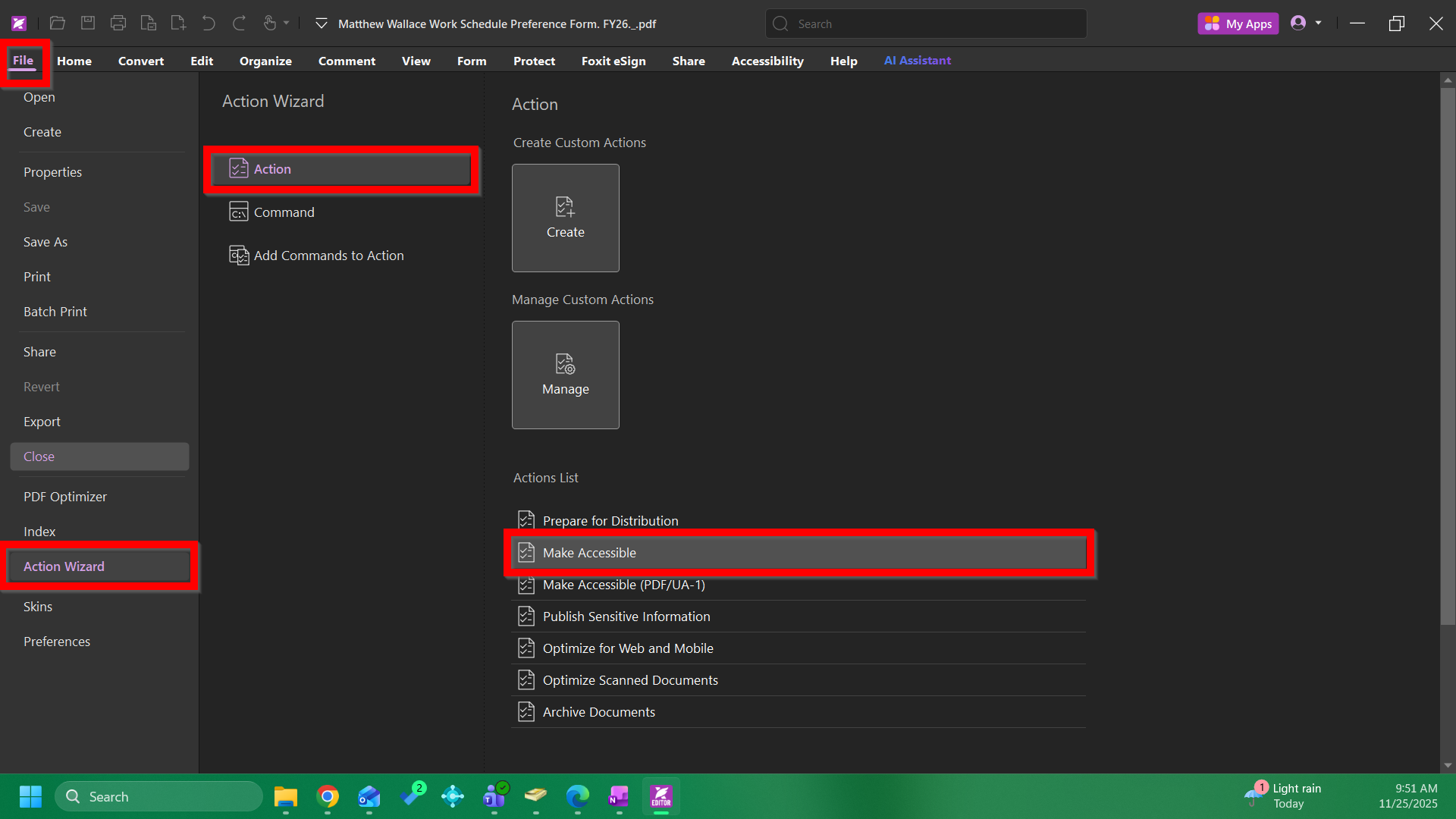
2. Navigate to Action Wizard
- Go to File > Action Wizard > Action > Make Accessible.
- This opens the Run Action pane.
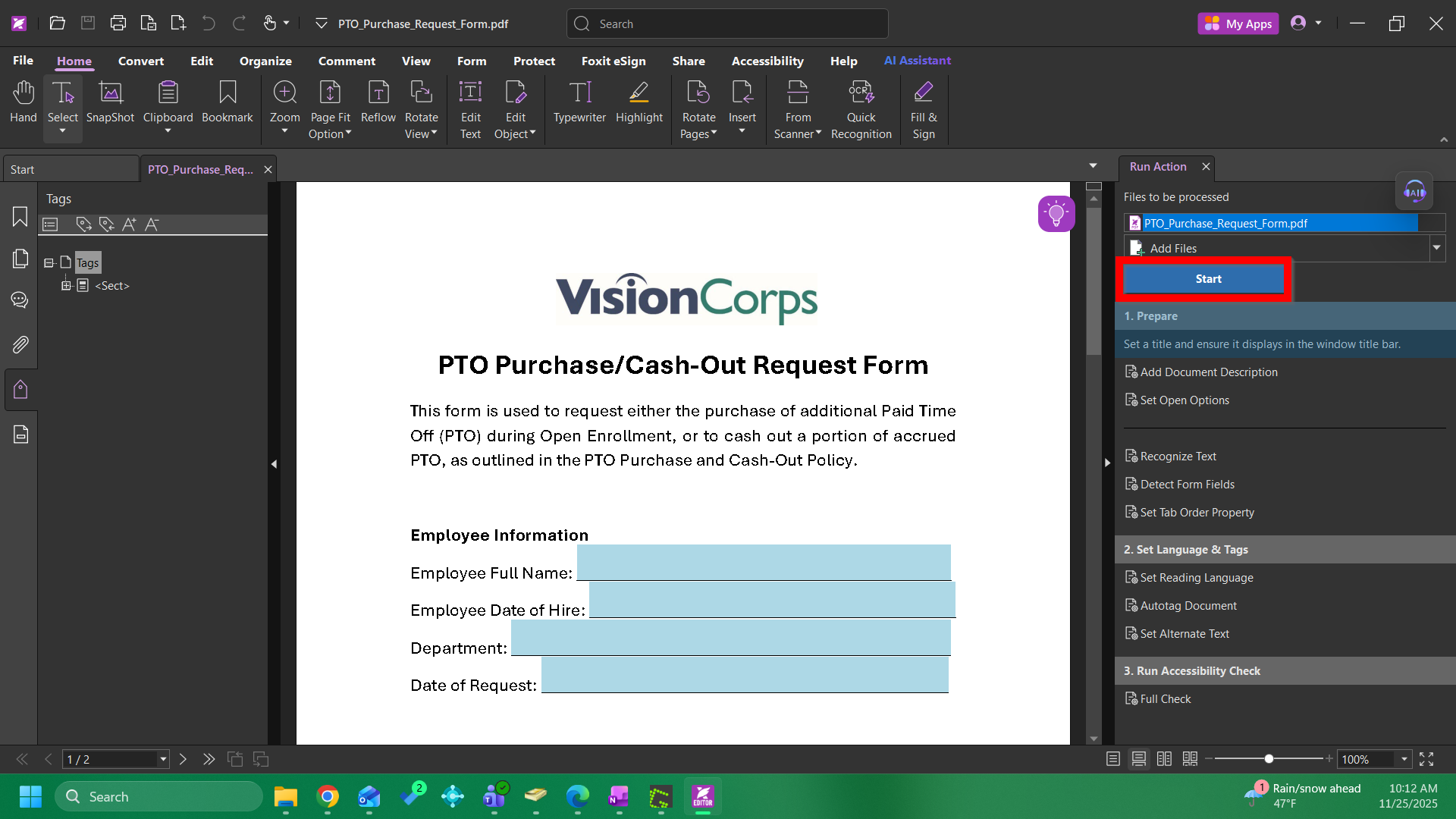
3. Click the Start button and the wizard will walk you through:
- Adding Document Description (title, subject, author, keywords).
- Detecting text (OCR if needed).
- Detecting form fields (if the form is to be used as a fillable form). You will need to verify the fields and the fieldnames on the form after the wizard is completed.
- Set the reading language.
- Tagging content for structure.
- Adding alternate text for images and figures.
4. Run Accessibility Check
- At the end of the wizard, Foxit runs an Accessibility Report.
- Review the report on the Accessibility Check pane:
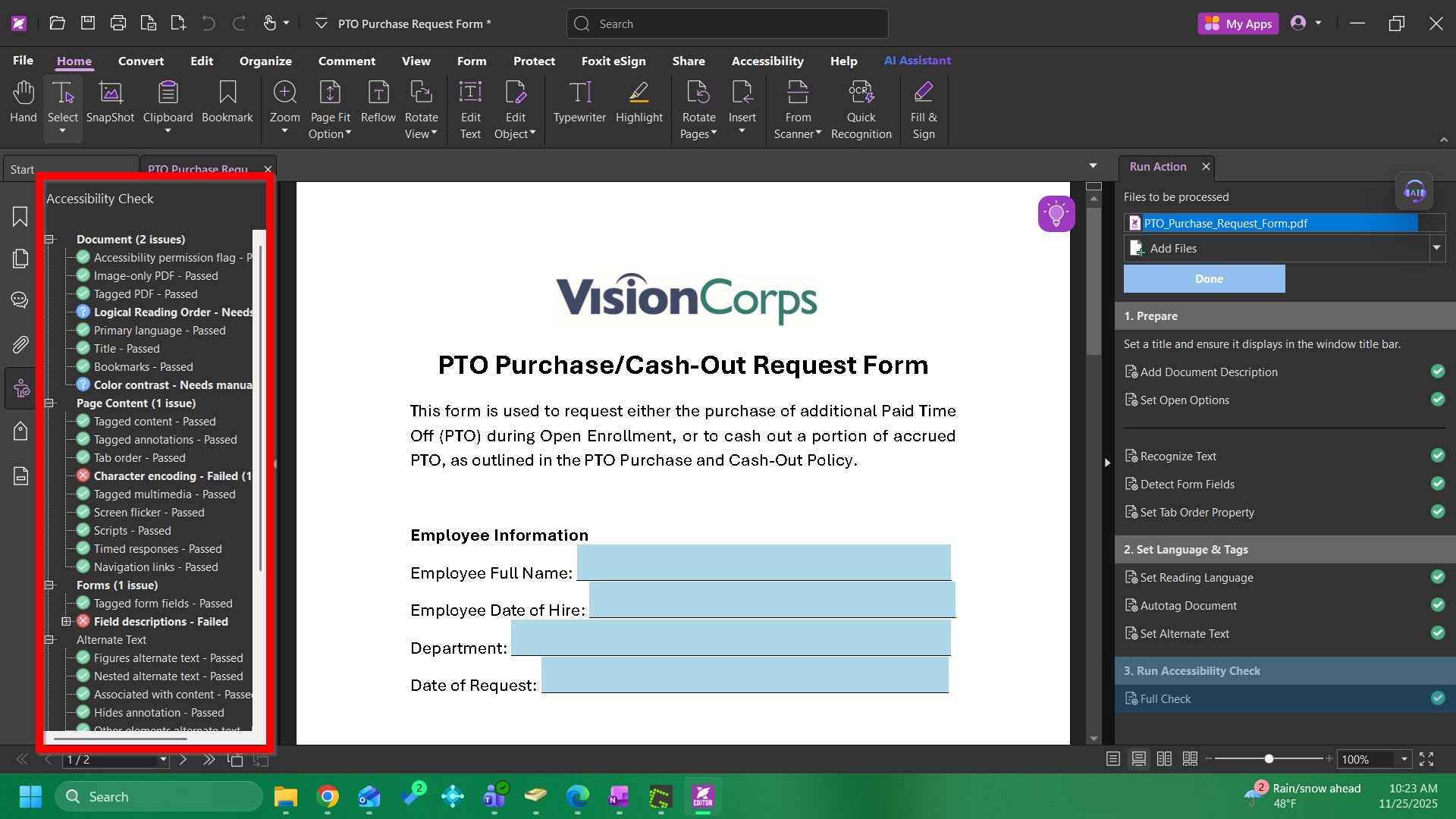
- Expand categories to see issues.
- Right-click any item for Explain or Show Report for details.
- Green - means that the item passed for accessibility.
- Blue - means that you have to MANUALLY check this.
- Red - means that the item fails for accessibility. Correct this issue.
5. Fix Issues
- Use the Accessibility Check panel:
- Right-click failed rules and choose Fix.
- For alternate text: open Tags panel, right-click image > Properties > add alt text.
- For reading order: click Accessibility > Reading Order, then adjust as needed.
6. Validate that:
- Document is tagged. When the various elements on a document are properly tagged, screen reader software can navigate to the next Heading, the next form field, the next paragraph or image on a document using keyboard shortcuts.
- Logical reading order is set.
- All images have appropriate alt text. This is what screen reader software use to describe images.
- Form fields have appropriate tooltips. This is what screen reader software uses to signal what information needs to be entered in the form field.