
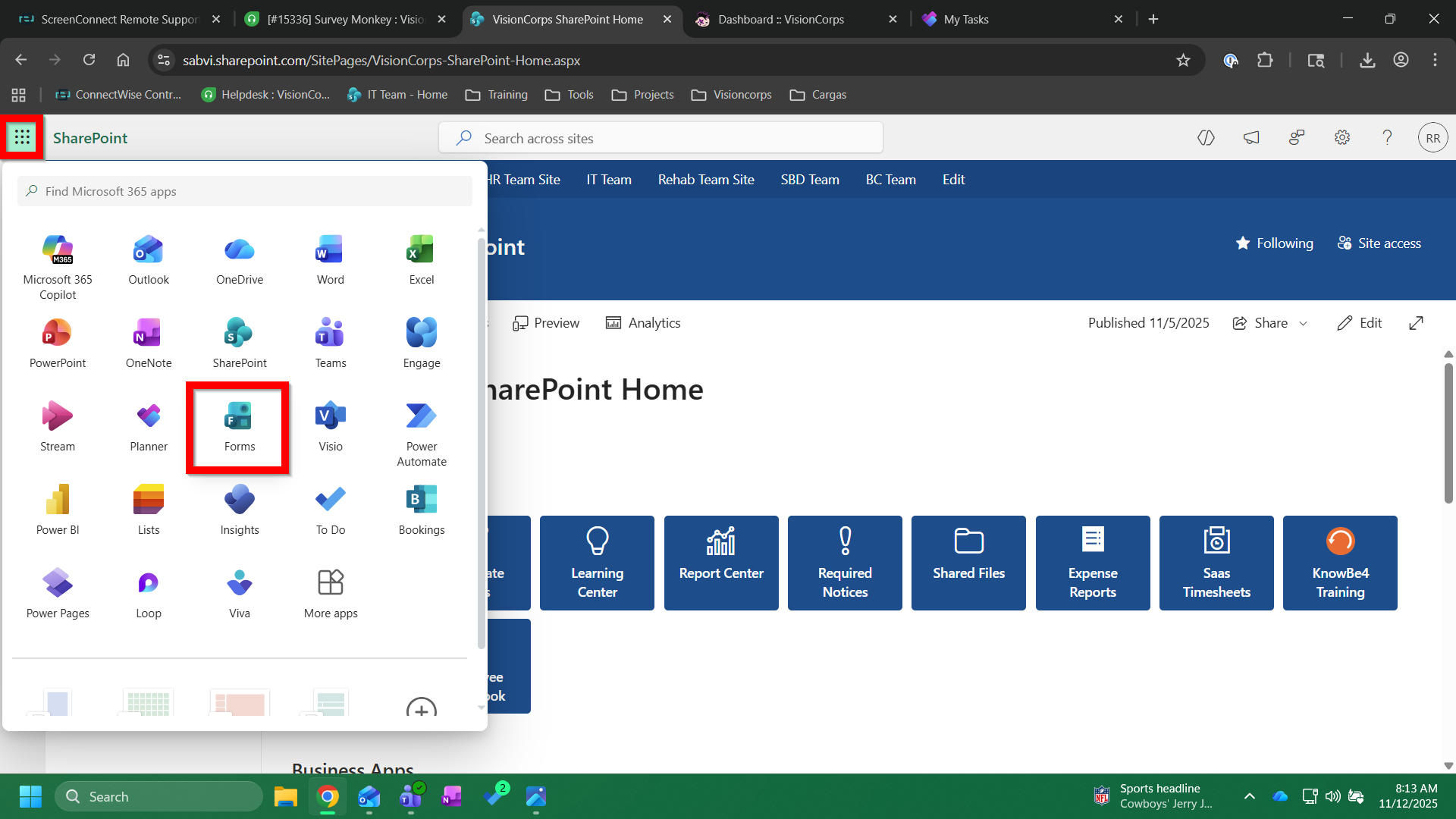
Microsoft Forms can be accessed through the App launcher (3x3 dots located on the top left corner) while you are on our SharePoint website or by navigating to forms.office.com.
There are two ways to save your Form:
- Personal account - by default no one else will be able to manage this without you adding them as a collaborator. If the form will be used on an ongoing basis, do not use this option.
- Group form - everyone part of the Office 365 group will have the ability to manage the form. This should be used if the form you are creating will be used on an ongoing basis or if other members of your team need access to the responses.
Selecting between Personal and Group Forms
- To create the form under your personal account, simply select the "New Form" button on the landing page for forms.office.com.
- To create the form as a group form, navigate to the "My groups" section on the landing page for forms.office.com. From here you will have to open the link to the group you want to save the form under. So you can select "PSD Team" for example.
- Once you have done this, it should open a new page for all the selected group's forms. Select "New Group Form" to begin creating your form.
There are instructions for creating forms with Microsoft Forms in the Learning Center on SharePoint or follow this link: https://sabvi.sharepoint.com/sites/LearningCenter/SitePages/Forms-Training.aspx?e=TCRV5E.